
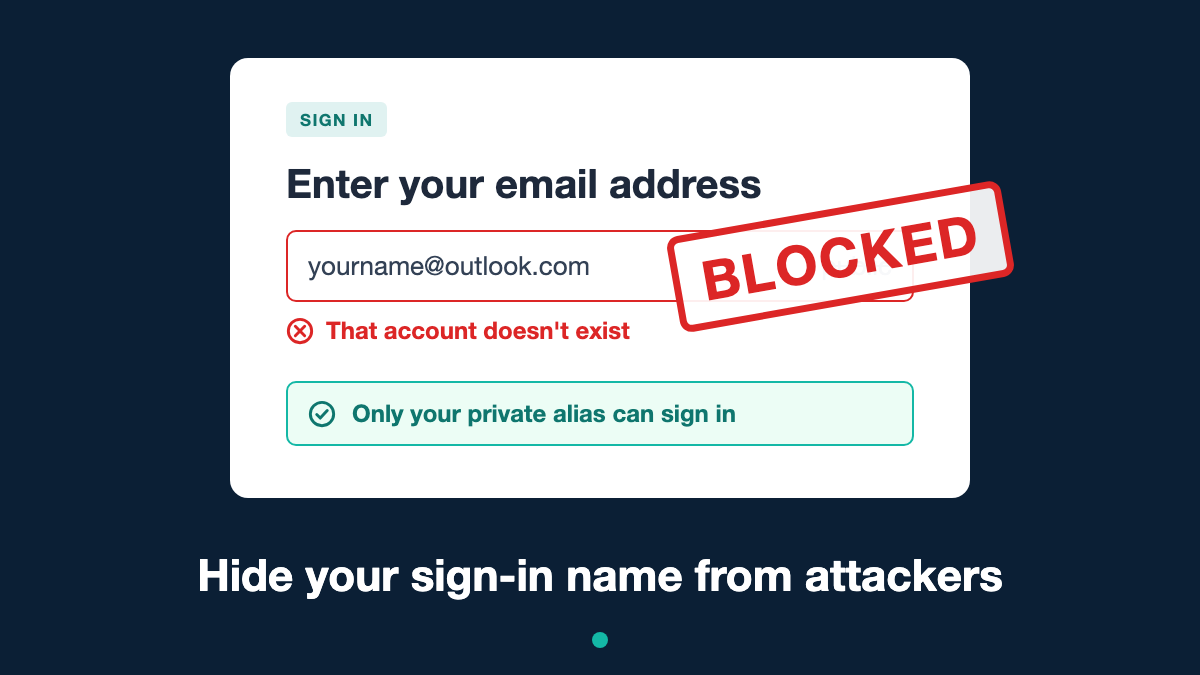
In plain English
If attackers know your Microsoft account email address, they can hammer it with password guesses and Authenticator sign-in requests all day. You can stop this by adding a second, private address (an alias) that is the only name allowed to sign in, then switching off sign-in for your well-known address.
Your inbox, files, subscriptions and password stay exactly the same. You still receive email at your old address. The difference is that anyone trying to sign in with the old address is told the account does not exist, so their attempt fails before a password or approval prompt is ever reached.
Scope: this applies to personal Microsoft accounts (Outlook.com, Hotmail, Live, Xbox, or a Microsoft account registered with another email address). It does not apply to work or school accounts managed through Microsoft Entra ID.
The problem: your email address is half the key
A sign-in needs two things: a username and proof that you own it. For most personal Microsoft accounts the username is simply your email address, which is printed on CVs, forwarded in emails and very often exposed in third-party data breaches.
Once an address is on a breach or spam list, automated tools try it constantly. Typical symptoms include:
- Repeated “unusual sign-in activity” or “unsuccessful sign-in” alerts from countries you have never visited.
- Unexpected Microsoft Authenticator approval requests or one-time codes you did not ask for (often aimed at “MFA fatigue”, where the attacker hopes you tap Approve to make it stop).
- The account being temporarily locked after too many failed attempts, locking you out too.
- Password reset codes arriving that you did not request.
Changing your password does not stop any of this. The attacker is not using your password; they are using your address. As long as that address is a valid sign-in name, the attempts keep reaching your account.
How the alias technique works
A Microsoft account can hold several usernames, which Microsoft calls aliases. Each alias is another email address (or phone number) attached to the same account. All aliases share one inbox, one contact list, one set of settings and one password (Microsoft Support).
Two settings make the technique work:
- Primary alias. One alias is marked primary. It is the name shown on your devices and it is always allowed to sign in.
- Sign-in preferences. For every non-primary alias, you can choose whether it is allowed to sign in. Disabled aliases still receive email but are rejected at the username stage of sign-in.
So the method is: create a new, private alias; make it primary; then switch sign-in off for your old, public address. An attacker who submits the old address is told no such account exists. No password check runs, no Authenticator request is sent, and no lockout counter increments.
This is a form of username obscurity. It does not replace strong authentication, but it removes the attacker’s starting point, which cuts noise and lockout risk dramatically.
Before you start
Ten minutes of preparation prevents the most common mistake: locking yourself out.
- ☐ Confirm you can sign in now and have access to your security info (Authenticator app, recovery phone or recovery email).
- ☐ Generate a recovery code (Microsoft account > Security > Advanced security options) and store it in a password manager or offline.
- ☐ Choose the new alias. Make it something you will never publish, never use to register for other services and never send email from. An unrelated, hard-to-guess Outlook.com address works well.
- ☐ Record the new alias in your password manager before you change anything.
- ☐ List the devices and apps signed in to the account (Windows, Xbox, Outlook mobile, OneDrive, Teams personal). Some may ask you to sign in again with the new alias.
Risks to be aware of
- Removing is not the same as disabling. Do not click Remove on your old Microsoft-domain address (@outlook.com, @hotmail.com, @live.com). Microsoft and third-party guides warn that removal can be irreversible and you may stop receiving mail to it. Disable sign-in instead.
- Forgetting the new alias. Once the old address is disabled, it no longer works for you either. If you forget the new one, recovery becomes harder.
- Phone numbers can be sign-in names. If a phone number is listed as an alias, check whether it is allowed to sign in, otherwise it becomes the attacker’s next route.
Step-by-step: create a sign-in-only alias
Microsoft changes these pages from time to time, so button labels may differ slightly from those below.
- Open the alias management page. Sign in at account.live.com/names/manage (Microsoft account > Your info > Account info > “Edit account info”).
- Add the new alias. Select Add email. Choose Create a new email address and add it as an alias (an Outlook.com address) or add an existing address you control. Complete any verification.
- Make the new alias primary. In the list of aliases, select Make primary next to the new address. Your primary alias can always sign in, so the old address must stop being primary before you can block it.
- Open sign-in preferences. On the same page select Change sign-in preferences.
- Disable the old address. Untick the old, public email address. Leave only the new private alias ticked. Untick any phone number you do not want used as a sign-in name.
- Save. Select Save and confirm any verification prompt.
- Test it. In a private browser window, try to sign in with the old address. You should see a message that the account does not exist. Then sign in with the new alias to confirm it works.
- Fix your From address (Outlook.com users). Making the new alias primary may make it the default sender in Outlook.com. Set your old address back as the default From address in Outlook.com settings, so your private alias is never exposed in email you send.
After the change
Most people report the unsuccessful sign-in alerts stop immediately or within a day, because automated tools are now submitting a username that no longer exists.
- Check the evidence. Review Recent activity over the following week. Failed attempts against the old address should disappear.
- Expect some re-sign-ins. Devices and apps already signed in normally keep working. Any that ask you to sign in again need the new alias.
- Email is unaffected. Mail sent to your old address still arrives in the same inbox.
- If attempts continue, check which sign-in name is being targeted. It may be a phone number or another alias still allowed to sign in, or the new alias may have been exposed.
What this does and does not protect against
A hidden sign-in alias is a noise-reduction and availability control, not a substitute for strong authentication.
| Threat | Helped by a hidden alias? | Notes |
|---|---|---|
| Password spraying and brute force against your known address | Yes | Fails at the username stage, before any password check |
| Authenticator prompt spam (MFA fatigue) | Yes | No prompt is generated for a non-existent username |
| Account lockouts caused by attackers | Yes | Lockout counters are no longer triggered by the old address |
| Phishing emails to your old address | No | You still receive mail there; a phishing page can capture whatever you type into it |
| A password reused from another breached site | Partly | Attacker also needs the hidden alias; change any reused password regardless |
| Session token or cookie theft (infostealer malware) | No | The attacker never needs to sign in |
| The new alias being exposed | No | If it leaks, you are back where you started; repeat the process with a fresh alias |
The honest summary: this sharply reduces automated attacks and the risk of being locked out. It does nothing against an attacker who tricks you into signing in, or who already has a valid session.
Layer it with stronger sign-in
Combine the alias with these controls, all available on personal Microsoft accounts under Security > Advanced security options:
- Two-step verification. Turn it on if it is not already, so a guessed password alone is never enough.
- Passkeys or Windows Hello. Phishing-resistant sign-in tied to your device. A fake sign-in page cannot capture or replay it.
- Passwordless account. Once a passkey or Authenticator is set up, you can remove the password entirely, which makes password spraying pointless.
- Never approve a prompt you did not start. If an unexpected Authenticator request appears, deny it and review Recent activity.
- Keep recovery info current. An up-to-date recovery phone, recovery email and an offline recovery code are what get you back in if something goes wrong.
Frequently asked questions
Will I still get email sent to my old address?
Yes. Disabling sign-in does not affect mail delivery. Both addresses deliver to the same inbox.
Can an attacker register a new account with my old address once it says “account doesn’t exist”?
No. The address is still attached to your account; it is only blocked from being used as a sign-in name.
Does it affect OneDrive, Xbox, Microsoft 365 Family or Authenticator?
No. It is the same account with the same data and subscriptions. Some apps may ask you to sign in again with the new alias.
Can I undo it?
Yes. Re-tick the old address in sign-in preferences and, if you wish, make it primary again.
How many aliases can I have?
Microsoft limits how many aliases you can add per year and hold in total. Check the current limit in Microsoft’s support pages before creating several.
Is this just security through obscurity?
Partly, yes. It is a useful extra layer that reduces attack volume and lockouts, but it must sit alongside two-step verification or passkeys, never instead of them.
Official Microsoft guidance
- How to add an email address to your Microsoft account, Microsoft Support
- Block an email address from signing in, Microsoft Support
- Change the email address for your Microsoft account, Microsoft Support
- Add a way to verify sign-in to your Microsoft account, Microsoft Support
- How to get a Microsoft account recovery code, Microsoft Support
- Edit account info (alias and sign-in preferences page), Microsoft account
Microsoft updates these pages periodically, so check them for the latest steps and wording.
Leave a Reply