
Most of us think of the internet in simple terms: well-known websites are safe, dodgy-looking ones are risky. Recent weeks have shown that’s not always true. Several serious security problems have hit the technology that ordinary websites run on, and criminals are taking advantage.
You don’t need to understand the technical details. But it’s a good moment to learn a few simple habits that keep you safe, even when a website you trust has been hacked.
What’s been going on
In one week in late October, three separate problems came to light:
- Weaknesses in the software behind most websites. Criminals were actively attacking flaws in PHP, the software that powers around 7 in 10 websites. Some websites had to go offline for emergency repairs.
- A serious flaw in another widely used website tool. Researchers found a critical problem in a component used by many websites to make pages load faster. Fixes were released quickly.
- Problems with website “ID cards”. Websites use digital certificates to prove they are who they say they are. That’s what the padlock in your browser is about. Eight of these certificates were compromised. Most web browsers have already blocked them, but some other apps and devices may still need updating.
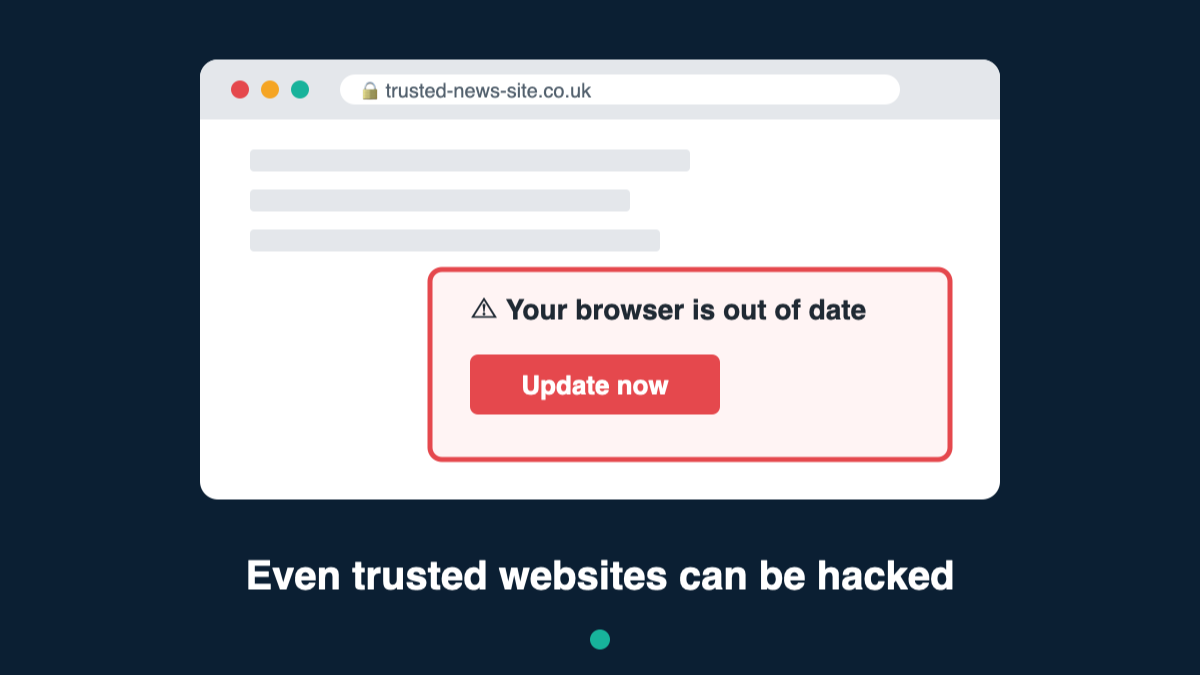
When a real, trusted website is hacked, criminals can use it to show fake messages, such as a pretend “security check” or a fake “update your browser” warning, designed to trick visitors into installing harmful software.
The one rule to remember
If a website asks you to do something that has nothing to do with why you’re there, stop. Reading an article or watching a video should never need you to install something, run a command or “fix” your computer.
8 simple habits for safer browsing
1. Be suspicious of odd requests, even on sites you know.
If a familiar website suddenly asks you to install an update, allow notifications, or press keys to “prove you’re human”, treat it as a warning sign. The site may have been hacked.
2. Remember: the padlock doesn’t mean “safe”.
The padlock only means your connection to the website is private. It doesn’t mean the website is honest or hasn’t been hacked.
3. Watch out for the “fix” trick.
Scams often pretend to solve a problem: “fix your connection”, “enable the video player”, “complete the security check”. The “fix” is usually the scam.
4. Check things yourself, the safe way.
If a website says your browser needs updating, close the message and check for updates in your browser’s own settings. If a message says there’s a problem with your account, don’t click its links. Open the official app or type the website address yourself.
5. Keep everything up to date.
Updates fix security holes. Turn on automatic updates for your computer, phone, browser and apps, and don’t keep clicking “remind me later”.
6. Leave your browser’s safety features switched on.
Browsers like Chrome, Edge, Safari and Firefox warn you about dangerous websites. If you see a warning, leave the page. But remember, no warning doesn’t guarantee a page is safe.
7. Use strong, different passwords and two-step verification.
A password manager can create and remember passwords for you. Two-step verification (a code sent to your phone or an app) stops criminals getting in even if they steal your password.
8. Use antivirus and keep it on.
Windows has Microsoft Defender built in. Make sure it’s switched on and up to date.
Warning signs that something’s wrong
- A website you know suddenly looks different or behaves strangely.
- A download starts that you didn’t ask for.
- You’re sent to a different website without clicking anything.
- You’re asked to log in again and again.
If you see any of these, close the page. If you’re not sure, ask someone you trust before doing anything. A few seconds of caution can save you a lot of trouble.
Leave a Reply