
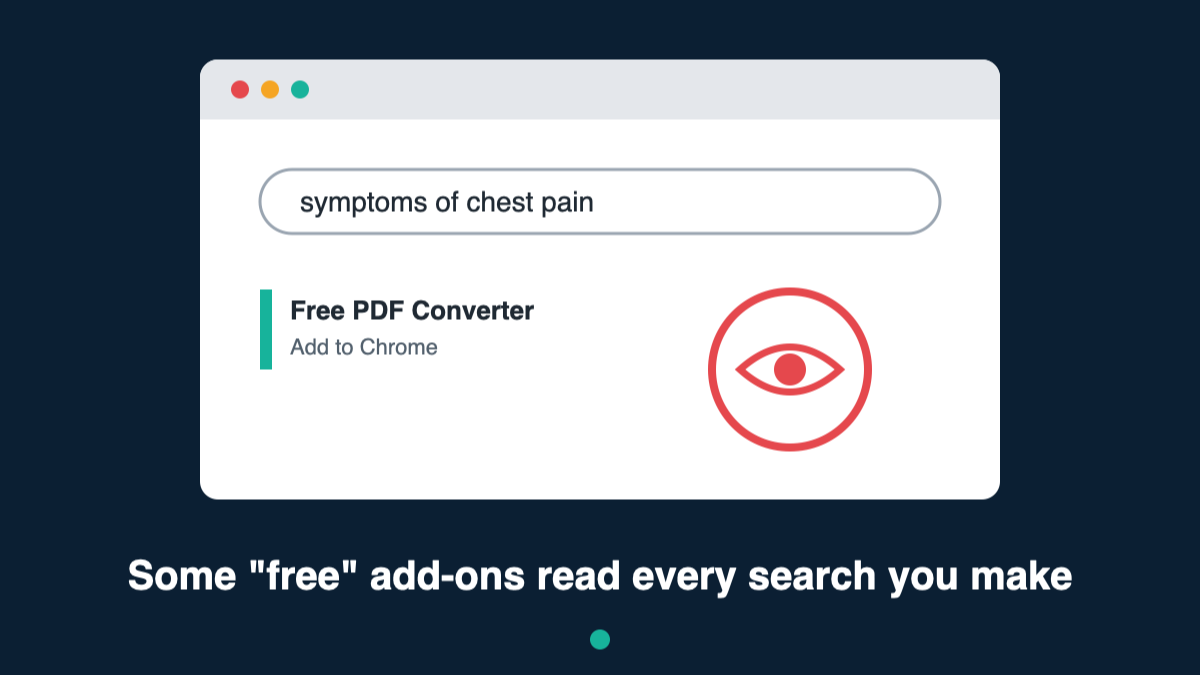
Need to turn a document into a PDF, or find the manual for your washing machine? A quick search will turn up plenty of free “helpful” tools that add themselves to your web browser. Security researchers have found that hundreds of them were quietly watching everything their users searched for.
What happened
Researchers at security company Socket found 319 add-ons for the Google Chrome browser that took over people’s searches. Between them, they had been installed about 13.4 million times over roughly ten years.
They were advertised as useful tools, such as:
- PDF converters
- manual finders
- “safe search” tools
- “AI search” tools
What’s an “add-on”?
An add-on (Chrome calls them “extensions”) is a small program that adds extra features to your web browser. Many are genuinely useful. But once installed, an add-on can often see and change what you do online, so you need to trust whoever made it.
How people ended up with them
Most people didn’t go looking for these add-ons. They were pushed through online adverts, including ads in Google search results. Click the ad and you’d land on a page that sent you to Google’s official Chrome Web Store to install it.
Because it came from the official store, it looked trustworthy. But most of these add-ons were hidden from the store’s search, so the only way to find them was through those ads.
What they did
Once installed, the add-on quietly changed your browser’s search settings. Every time you searched for something:
- your search went to the add-on makers’ computers first,
- they could read it and keep a record,
- then they passed it on to Yahoo or Bing, so you still got normal-looking results.
You probably wouldn’t notice anything was wrong. Meanwhile, the makers were paid by the search engines for sending them traffic.
Why it matters
Think about what you search for: health worries, money problems, legal questions, work matters. Your searches say a lot about you.
The researchers found that searches were often tagged with a unique code for each person, so someone could build up a picture of one person’s searches over time. They also warned that the same setup could be used to send people to fake or dangerous websites, although they found no evidence that this had happened.
The one rule to remember
Don’t install a browser add-on just because an advert told you to. If you need a tool, look for one from a company you already know and trust.
For PDFs, you often don’t need an add-on at all. Microsoft Word, Google Docs and most phones can save files as PDFs already.
How to check your computer (takes 2 minutes)
1. Look at your add-ons
- In Chrome, click the three dots in the top-right corner.
- Choose Extensions, then Manage Extensions.
- If you see anything you don’t recognise, don’t use or don’t trust, click Remove.
2. Check your search engine
- Click the three dots, then Settings, then Search engine.
- Make sure it’s set to the one you want, such as Google or Bing.
- If Chrome says an extension is controlling this setting, remove that extension.
3. Run a scan with your antivirus to catch anything else.
Warning signs
- Your searches suddenly look different, or go to a search site you didn’t choose.
- You can’t change your search engine back.
- You remember installing a PDF, manual, “safe search” or “AI search” tool after clicking an advert.
If any of these sound familiar, follow the steps above. And if you’re unsure about an add-on, ask someone you trust before installing it.
Source: research by Socket, reported by Malwarebytes, October 2026.
Leave a Reply